Configuring Mozilla Firefox for increased privacy:
Privacy Settings
Table of contents:
Summary:
This article describes what private information Mozilla Firefox stores on your system and how to reconfigure it to reduce it's amount.
While using a proxy server will give you a certain level of protection aginst the detection of your IP address, the browser will store plenty of information about sites you visit. Although Firefox has built-in feature to clear history and temporary files, but that might not be enough to really clear it. The reason is that it's pretty hard to actually remove any files from the Windows file systems. There are a lot of forensic tools that can restore deleted files or even restore whole drive contents even after drive format. So the question is, what to do. The answer is a preventive measure are more effective than trying to remove data that's already written to the disk. One of preventive measures is to configure browser to not store any private data (history, passwords, cache, etc.) in the first place. Since if no data is actually stored it's not needed to delete it. While this maybe sometimes might be inconvenient it's usually not a big issue.
As a target browser we will be using Mozilla Firefox 3. There are following components that need the reconfiguration:
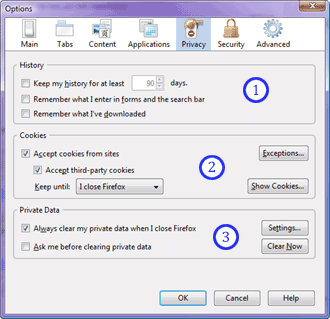
The obvious dangers of the stored browsing history is that the address of each and every web page you have visited is recorded. Of course there are plenty of forensic tools that will extract and trace all the sites you have visited.
 The dangers of cookies are that
each
of them contains a record of the web site's address it was sent from.
So it works
as an evidence that a particular web site was visited. To see currently
stored cookies you can click the
"Show Cookies..." button. It's a very good idea to get rid of them as
soon as possible.
The dangers of cookies are that
each
of them contains a record of the web site's address it was sent from.
So it works
as an evidence that a particular web site was visited. To see currently
stored cookies you can click the
"Show Cookies..." button. It's a very good idea to get rid of them as
soon as possible.
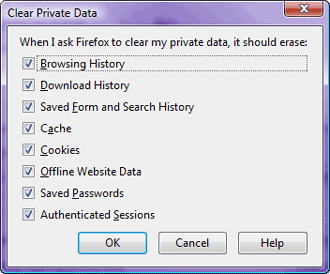
If you click the "Settings..." button you can see what private data can be removed. Also check that all the options in this window are enabled.
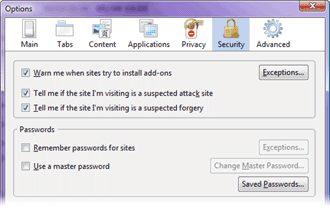 Saved passwords are a particularly dangerous feature. Only recently Firefox
started use of encrypted saved passwords. The ramifications for the
stolen saved passwords are immense. There have been numerous reports of passwords
stolen from compromised machines (say good-bye to your Paypal account
for example). The best way is not to save passwords in the browser. If you really need to save
passwords, consider using some good 3rd-party utility designed exactly for a safe password
storage.
Saved passwords are a particularly dangerous feature. Only recently Firefox
started use of encrypted saved passwords. The ramifications for the
stolen saved passwords are immense. There have been numerous reports of passwords
stolen from compromised machines (say good-bye to your Paypal account
for example). The best way is not to save passwords in the browser. If you really need to save
passwords, consider using some good 3rd-party utility designed exactly for a safe password
storage.
Summary:
This article describes what private information Mozilla Firefox stores on your system and how to reconfigure it to reduce it's amount.
While using a proxy server will give you a certain level of protection aginst the detection of your IP address, the browser will store plenty of information about sites you visit. Although Firefox has built-in feature to clear history and temporary files, but that might not be enough to really clear it. The reason is that it's pretty hard to actually remove any files from the Windows file systems. There are a lot of forensic tools that can restore deleted files or even restore whole drive contents even after drive format. So the question is, what to do. The answer is a preventive measure are more effective than trying to remove data that's already written to the disk. One of preventive measures is to configure browser to not store any private data (history, passwords, cache, etc.) in the first place. Since if no data is actually stored it's not needed to delete it. While this maybe sometimes might be inconvenient it's usually not a big issue.
As a target browser we will be using Mozilla Firefox 3. There are following components that need the reconfiguration:
Privacy settings
1.Browsing History
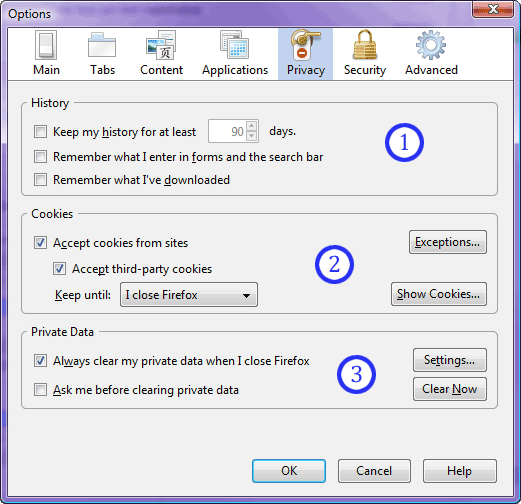
First thing that has to be corrected is Firefox browsing history settings. These settings are located in the Privacy tabsheet of the Tools->Options... menu. You need to uncheck boxes that enable logging of browsing history and user entered strings.The obvious dangers of the stored browsing history is that the address of each and every web page you have visited is recorded. Of course there are plenty of forensic tools that will extract and trace all the sites you have visited.
2. Cookies
Cookies are used by websites to store little data snippets in your browser. Almost all the sites leave some kind of cookie in your browser. Luckily Firefox has an option to remove cookies when it's exited. Altho it's possible to not accept cookies at all, but that often can cause problems since some sites actually need to have cookies enabled to for navigation to work.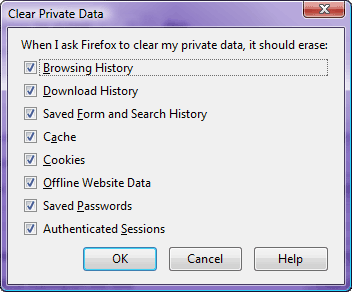 The dangers of cookies are that
each
of them contains a record of the web site's address it was sent from.
So it works
as an evidence that a particular web site was visited. To see currently
stored cookies you can click the
"Show Cookies..." button. It's a very good idea to get rid of them as
soon as possible.
The dangers of cookies are that
each
of them contains a record of the web site's address it was sent from.
So it works
as an evidence that a particular web site was visited. To see currently
stored cookies you can click the
"Show Cookies..." button. It's a very good idea to get rid of them as
soon as possible.
3. Private Data
Firefox has a built-in private data cleaning utility. It can clean up any remaining traces of data (which should small to non-existant). The best option is to enable it to clear data whenever you close the brower. This way you can be fairly certain not to forget to run it. Only problem is that if you crash or power down without proper shutdown this procedure won't be executed, so keep that in mind.If you click the "Settings..." button you can see what private data can be removed. Also check that all the options in this window are enabled.
Saved passwords
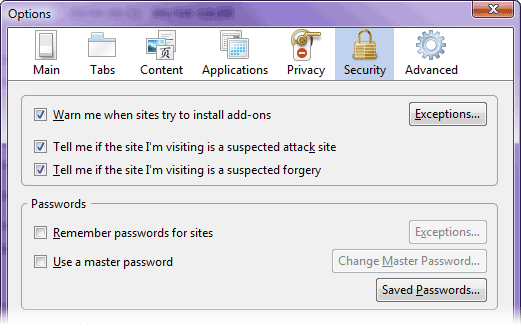 Saved passwords are a particularly dangerous feature. Only recently Firefox
started use of encrypted saved passwords. The ramifications for the
stolen saved passwords are immense. There have been numerous reports of passwords
stolen from compromised machines (say good-bye to your Paypal account
for example). The best way is not to save passwords in the browser. If you really need to save
passwords, consider using some good 3rd-party utility designed exactly for a safe password
storage.
Saved passwords are a particularly dangerous feature. Only recently Firefox
started use of encrypted saved passwords. The ramifications for the
stolen saved passwords are immense. There have been numerous reports of passwords
stolen from compromised machines (say good-bye to your Paypal account
for example). The best way is not to save passwords in the browser. If you really need to save
passwords, consider using some good 3rd-party utility designed exactly for a safe password
storage.N.B. If
you fill the login form on some website by default Firefox
will ask you - "Do you want to save password for this site?" -
in case you answer "not for this site" - it's name will end up inside Firefox's
exception list which is readable to anyone. Same goes for all the exceptions lists
in the browser! So you need to answer "No"
in such cases.
On to Caching and Boomarks >>
General
Anonymous Browsing - Why & How Does It Work
How to configure Firefox for increased privacy
Standard vs Pro version
Automatic Proxy Switching
Anonymous Browsing Using Socks servers
How to force program to use proxy server
Use Case - Anonymous Torrents
Use Case - Dealing with Group Policy proxy settings
Use Case - beating BBC iPlayer
Use Case - beating Hulu.com
Use Case - beating Forum IP ban
Use Case - beating Rapidshare.com
Use Case - watching YouTube.com's not available videos
Use Case - posting on Craigslist
Proxy Scanner Options Explained
Special GEO Handling
In-Depth Proxy Server Testing
Proxy Test Target Management
Import/Export proxy lists
Internal Proxy Servers
PlayStation 3 + Proxy Switcher
ProxySwitcher's proxy scanner: Maximizing Scanning Speed